After increasing text size, how do you check that choices and body text remain fully usable?
Use the same passage, two long choices, and a pop-up explanation to check reading, selection, and return paths after enlarging text. Record blocking, truncation, and sequence issues to pinpoint failures.
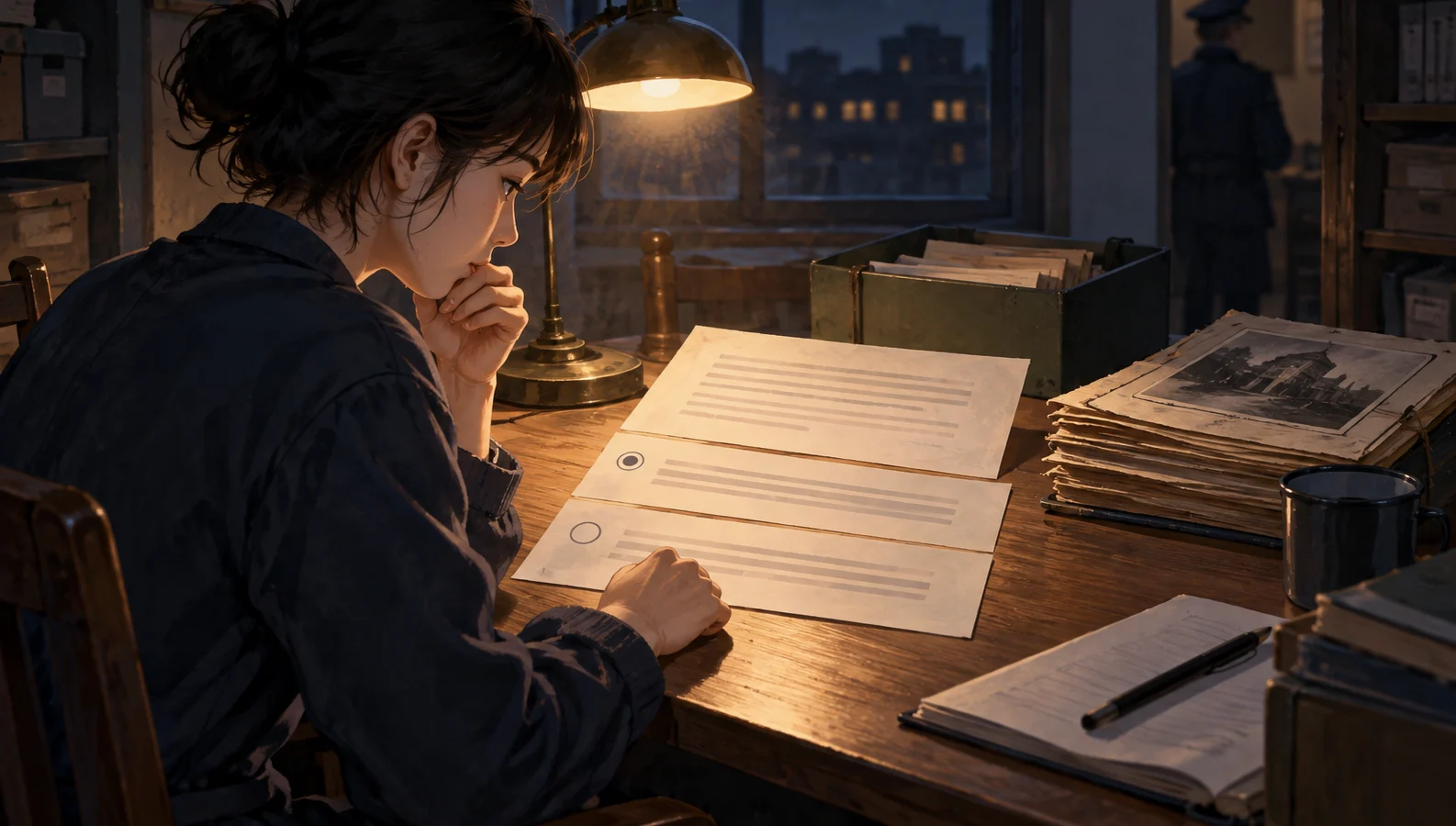
Verify the complete task before judging the layout
After increasing text size, the core question is whether readers can read all the information needed to decide, distinguish every choice, open and close the explanation, and finally submit the action they intend to take. Checking only for overlap on the first screen misses buttons farther down, clipped conditions, and the return position after closing the explanation.
Use one continuous path for the check: read the passage → read every choice → open the explanation → finish reading and close it → return to the original choice → submit → identify the feedback. A longer page and scrolling are both acceptable; do not make fitting everything on one screen a passing requirement.
The requirement to preserve content and functionality when text is enlarged to 200 percent has explicit exceptions. Understanding text resizing
The manual acceptance procedure below is an original design. “The Night-Shift Records Room” is a fictional teaching example, not a real user case, an actual test result, or a DramaFork product feature. All the issues described are hypothetical and demonstrate how to assess and record failures. These steps do not constitute compliance certification.
Choose a sample that exposes long-choice problems and use it consistently
In this example, the character is examining an old handover sheet. The passage ends: “The copy is missing its last page; the original is still held by the attendant on duty.” This sentence affects the decision and must not disappear when text size increases.
Prepare two choices. A: “Ask the attendant to check the original first, confirm whether the last page is missing, then decide whether to take the copy.” B: “Take the existing copy now and return tomorrow morning to check, but accept that you cannot confirm the last page’s contents tonight.” Beside B is a “Copy details” control that opens this explanation: “The copy contains only the pages that have been photocopied. This does not mean the original is also missing pages.” Place a close button at the bottom.
This sample covers the passage’s final sentence, a condition at the end of a choice, and a separate explanation. Before checking, save the complete text as a reference and assign identifiers to the passage, A, B, and the explanation. Otherwise, when you see half a sentence, it is difficult to tell whether the author wrote it that way or the interface cut it off.
Record the device or window, orientation, available width, build version, and the specific method used to enlarge text. Record system text size, page zoom, and the work’s own text-size setting separately; change only one condition at a time. If you cannot confirm the actual scale, record the setting’s name and level. Do not label “Large” as “200 percent.”
Complete reading, explanation, and submission in six steps
- Open the sample at the default text size, read the passage’s final sentence, and verify the full wording of A and B. Open and close the explanation, then take the A and B paths separately and record their expected feedback. Record any failures already present at the default size; do not count them as new problems caused by enlargement.
- Keep the window conditions unchanged and enlarge text using the selected method. Where an explicit scale is supported, include a 200 percent checkpoint. Confirm that the passage and choice text actually change size, so you do not accidentally enlarge only the surrounding interface.
- Read the passage from beginning to end, then read every choice in full. Try normal scrolling to reach the final character of each section, paying particular attention to B’s “cannot confirm the last page’s contents tonight.” Absence from the first screen does not mean truncation. Investigate further if the text still cannot be read after scrolling.
- Open the explanation near B, read to its end, then find the close control. Observe separately whether the explanation itself or the page behind it scrolls, and whether a fixed bar covers the close button. Do not reduce the text size to complete this step.
- Close the explanation. Confirm that you remain at the same decision node, can locate B again, and have not accidentally submitted a choice. The scroll position need not return to the exact same pixel, but readers should be able to resume their task.
- In a practice copy, click both the text area and the edge of B in separate attempts, resetting between them. Check that the feedback corresponds to B in both cases. Then repeat the A path. Visible text does not guarantee that its area responds correctly.
If the work supports keyboard operation, check focus along the same path: after opening the explanation, you can reach its content and close control, and after closing it, focus returns to a reasonable location. Record this result separately; successful mouse clicks cannot stand in for it.
Create a reviewable acceptance record with three issue categories
These three categories describe how a failure presents itself, without guessing at its code-level cause. One issue can have a primary category and a related category. Prioritize the first failure that interferes with the task.
| Category | Assessment question | Hypothetical behavior in the example |
|---|---|---|
| Blocking | Is a required action impossible to complete? | The explanation can be read in full, but its close control remains unreachable |
| Truncation | Is necessary text impossible to read in full? | The container clips B’s final condition, and scrolling does not help |
| Sequence | Are reading, actions, or return paths incorrectly connected? | Closing the explanation jumps to another node, or clicking B triggers A |
Copy this record card and fill out a separate one for each failure:
- Environment and version: device or window, orientation, width, and build version.
- Enlargement conditions: method, scale or setting level, and which text actually changed size.
- Reproduction path: node identifier, starting position, and actions performed in order.
- Expected and observed: the final sentence that should be readable or the feedback that should appear, and what actually happened.
- Classification and evidence: primary category, related category, and necessary screenshots or interaction records.
- Recheck after repair: results under the original conditions, at adjacent text sizes, and at the default size.
For example, suppose enlarged B displays only as far as “but accept,” and scrolling up or down reveals no more text. Record “B’s final condition is unreachable: truncation,” rather than “The button looks bad.” If clicking the remaining text also triggers A, create a separate sequence issue. Recheck both records separately so that a display fix is not mistaken for restored click mapping.
Choose changes based on the failure and retain the limits of the check
When a long choice is clipped, you can let its container grow with the text or arrange choices vertically. The first suits an already vertical layout; the second suits a side-by-side layout whose columns have become too narrow. Recheck the final conditions after changing the layout. Simply shortening the wording may also remove the cost of a decision.
When an explanation covers choices, you can use a separate scrollable explanation area or expand it near the choice. A separate area needs clear close and return paths. Expanding in place reduces switching but may push the submission point much farther down. Evaluate a solution by completing all six steps again, not just by comparing screenshots.
Watch for failures that only appear fixed: scrolling is added to the explanation, but the close button remains outside the reachable area; choice height increases, but the clickable area stays in its old position; text is shrunk to remove overlap, overriding the size the reader just selected. None of these restores the complete task.
The passing conditions for this round are: the sample text can be read in full, necessary actions are accessible, choices match their feedback, and the task can continue after the explanation is closed. If any failure remains unresolved, mark this sample as failed and specify the affected path.
Passing establishes only that the recorded version, environment, and sample satisfy this check. It does not establish usability in other windows, with other input methods or languages, or across all chapters. Next, prioritize longer passages, more choices, and explanations of different lengths. Keep using the same record card to show which conditions have been checked and which remain unexamined.