DramaFork Storyboard Misses an Action: Why Later Assets May Not Match
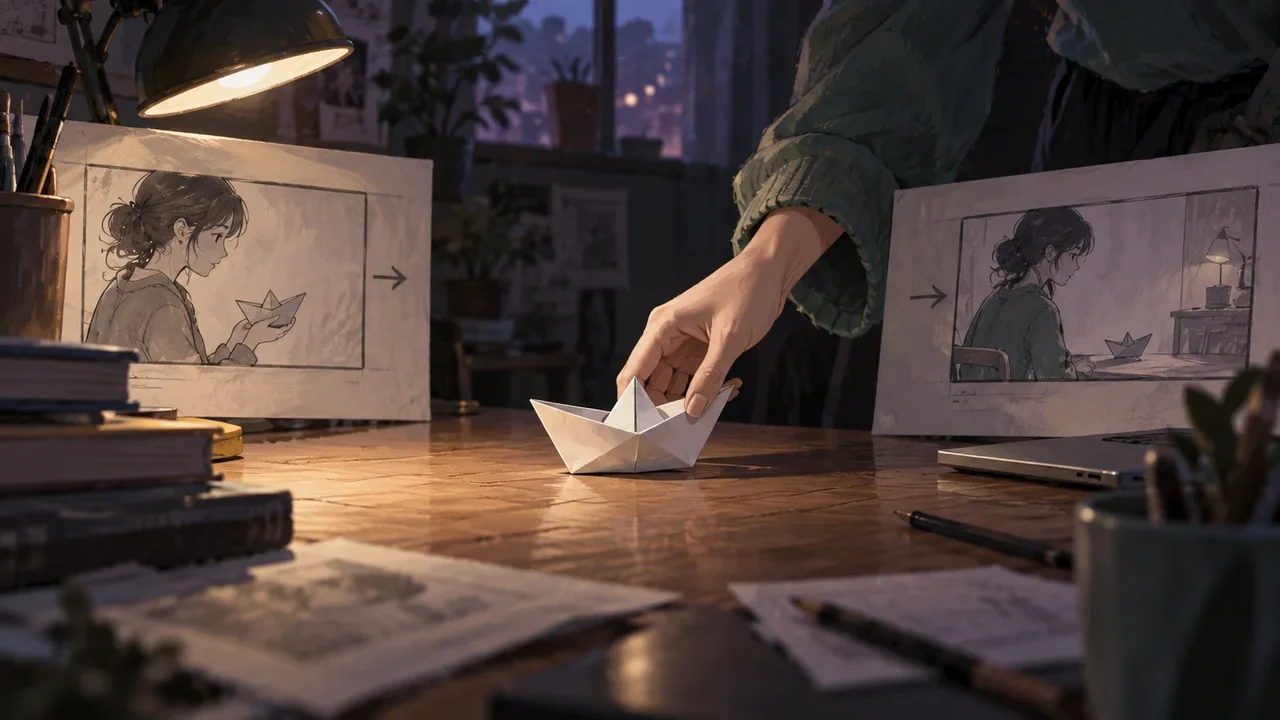
When a storyboard misses an action, first check the exit of the previous shot against the entrance of the next shot. For example, at the end of shot 7 the paper boat is still in Lin Wan's hand, but at the start of shot 8 it is already on the table, with no action of putting the paper boat down in between. The author needs to add this transfer, then check whether nodes and videos still use the old description. Changing only the text of the later shot cannot prove that already completed segments change along with it.
Introduction
When a storyboard misses an action, first check the exit of the previous shot against the entrance of the next shot. For example, at the end of shot 7 the paper boat is still in Lin Wan's hand, but at the start of shot 8 it is already on the table, with no action of putting the paper boat down in between. The author needs to add this transfer, then check whether nodes and videos still use the old description. Changing only the text of the later shot cannot prove that already completed segments change along with it.
Below is a fictional teaching example that walks through the entire process. The project name, character names, and numbers in the example are made up; they are only used to demonstrate the checking method, not as actual test data.
First See Which Layer the Missing Item Propagates To
DramaFork's creation process is: idea, planning, script, storyboard, style, character assets, interactive nodes, video, playable preview, export. The storyboard sits in the middle-to-later part, and it affects nodes, video, preview, and export downstream. In other words, missing one action in the storyboard table does not just mean missing one image; it means several downstream layers cannot get complete information.
| Change location | Completed downstream steps to check |
|---|---|
| Planning | Script, storyboard, style, characters, nodes, video, preview, export |
| Script | Storyboard, style, characters, nodes, video, preview, export |
| Storyboard | Nodes, video, preview, export |
| Style | Characters, video, preview, export |
| Characters | Video, preview, export |
| Nodes or video | Preview, export |
The purpose of this table is to remind you: after completing the storyboard, do not stare only at the storyboard itself. If already completed nodes and videos reference the old storyboard, they should be marked as needing update. Old data is retained for comparison, but that does not mean it can still be used directly in the new version.
Walk Through Shot Before-and-After Checking with the Paper Boat Case
The fictional project is called "Paper Boat Night Voyage," and the first act takes place in an old dock duty room. The script nodes say:
- Node A: Lin Wan enters the duty room holding a paper boat and puts it on the table.
- Node B: Lin Wan asks Uncle Chen whether he recognizes the signature on the paper boat.
- Node C: Uncle Chen says he does not know and turns to close the window.
The first draft of the storyboard, however, says:
- Shot 7: Lin Wan pushes the door open holding the paper boat and enters; the table is empty.
- Shot 8: The paper boat is already on the table; Lin Wan sits down.
- Shot 9: Lin Wan asks Uncle Chen whether he recognizes the signature on the paper boat.
What is missing here is the placing action already established in the script. The paper boat goes from hand to table, but the transfer is not shown. When adding the shot, the fact that Lin Wan is the holder should be preserved; you cannot, just to connect the images, temporarily change it so that Uncle Chen takes the paper boat out from the inner room. The storyboard correction should fulfill the script. If the holder really must be changed, first go back to the script to confirm the new causality.
When checking, first make a shot before-and-after checking table. Each row contains only one shot, and the focus is on three things: which script node it corresponds to, what the entrance action is, and what the exit action and visible objects are.
| Shot | Corresponding node | Entrance action | Exit action | Visible objects |
|---|---|---|---|---|
| 7 | A | The door is pushed open | Lin Wan stands still, holding the paper boat, table empty | Door, table, paper boat |
| 7 supplement | A | Lin Wan stands still, holding the paper boat | Lin Wan puts the paper boat on the table | Door, table, paper boat |
| 8 | A | The paper boat is already on the table | Lin Wan sits down | Table, paper boat, chair |
| 9 | B | Lin Wan looks at the paper boat | Begins to ask a question | Table, paper boat, Uncle Chen |
After adding "7 supplement," the exit of that shot is "the paper boat is on the table," and the entrance of shot 8 is the same state. If the original shot 8 already has a placing action, there is no need to add another shot; first check the actual description to avoid fixing one missing item and causing duplication. The action can be written into a shared shot or occupy a separate shot; the key is that the source and transfer are clear.
The key to this step is that the entrance and exit must connect. The exit object of the previous shot must become the entrance object of the next shot; the exit action of the previous shot must become the entrance state of the next shot. As long as one side does not match, it means a gap is missing in between, or one cell was written incorrectly.
After Filling the Gap, Check Downstream by Dependency
After the storyboard is changed, do not rush to regenerate all assets. According to the current dependency, storyboard changes affect nodes, video, preview, and export. You can do this:
- Open the node table, find the interactive nodes that reference shots 7, 8, and 9, and confirm that the actions and objects in the node descriptions have been synchronized.
- Check the system's "needs update" prompts for the relevant completed steps, list the old nodes and old videos in your own review record, and compare them item by item.
- Check whether the paper boat appears at the correct time when this section plays in the playable preview.
- Before export, confirm that both the local asset package and the remote link package point to the updated version.
There is no precise semantic automatic diff here, and no one-click confirmation of reuse. Creators need to check manually: exactly which expressions of old assets this modification changes. If only one action was added, perhaps only the videos for shots 7 and 8 need to be redone; if the node descriptions were also changed, preview and export must also be checked accordingly.
Completion Check
After filling the gap, use the following items for a final check:
- The entrance action of every shot can be found in the exit of the previous shot.
- The exit object of every shot can be found in the entrance of the next shot.
- Objects that appear in the storyboard have a source in the script nodes; they do not appear out of nowhere.
- Completed nodes, videos, previews, and exports that reference the old storyboard have all been marked as needing update.
- Old data is still retained, making it easy to compare differences before and after the modification.
If all these items match, it means this gap-filling did not leave new breakpoints. Next, you can check video preview and export layer by layer starting from nodes according to the current dependency. This article was organized by DramaFork and describes the current project implementation; specific operations are subject to the actual interface of your local branch.